We are the Best Consulting web site as part of the annual WebAward Competition!

 Arabic
 French
 Spanish

Microsoft Fabric has multiple experiences such as Data Engineering and Data science that provides options to analyze data and build insights. The Data Activator experience is one that majorly differs from others, as it allows us to automate actions based on the insights derived from the data.
Data activator continuously monitors data from sources such as Eventstreams and Power BI reports, and triggers an action based on a preset condition.

It can be used in following scenarios:
- Tracking manufacturing workflows and immediately triggering an action such as stopping the workflow in case of any defect
- Monitoring the warehouse inventory and triggering an alert if the warehouse is nearing its capacity or the inventory is not in updated state as per schedule.
In addition to the business use cases, it can also be used for alerting on technical solutions like:
- Monitoring logs of website infrastructure and triggering security alerts
- Monitoring data load pipelines and triggering failure alerts
Microsoft Fabric provides a built-in simulator to have a realistic hands-on using Data Activator.
To work on the steps given below, you need either a Microsoft Fabric trial capacity or a minimum of F2 capacity enabled for the workspace that you are using.
Working with Data Activator
We will work with the sample data provided by the Simulator in Microsoft Fabric.
- Go to the workspace and switch to ‘Data Activator’ experience. Select the Reflex Sample (Preview).
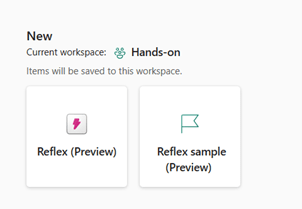
2. A screen opens with a multitude of options to work with. Let’s go over them.
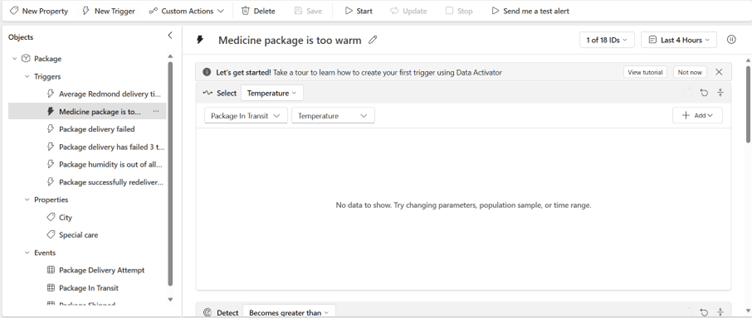
Objects
Objects encapsulate the source, triggers and actions
Events
Events are the source of observations for Data Activator. The Events can be based on Event Streams or Power BI visuals
Properties
Properties in Data Activator are used to encapsulate logic that can be reused across multiple triggers.
Actions
When a trigger condition is met, Data Activator automatically performs pre-defined actions.
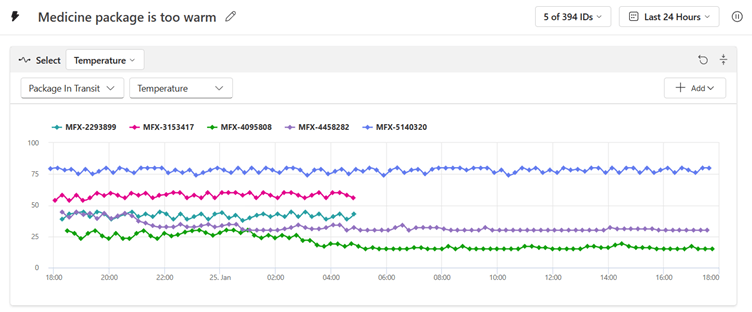
3. On the left pane, select the ‘Medicine package is too warm’ trigger. You will be able to see three panels.
a. In the first pane, you will be able to alter the current property that is being monitored
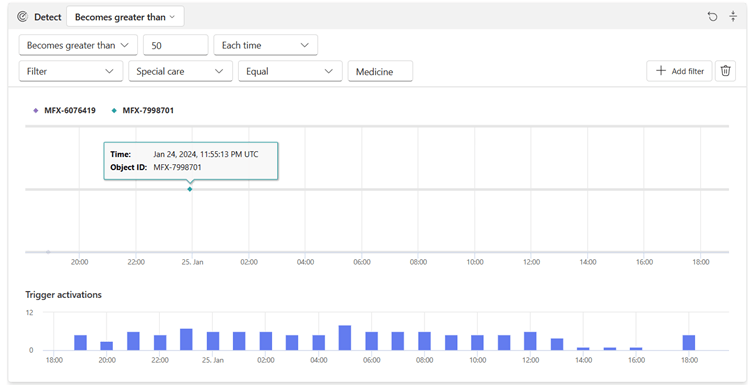
b. In the next panel, you can set the condition (threshold) for triggering the action. It provides multiple options like less than, greater than, increases or decreases by e.t.c. In addition to threshold, you can add filter conditions such that only a subset of items trigger the action when condition is met.
c. In the final panel, you will be able to set the action that gets triggered once the condition is met. By default, you will be able to send an email or teams message. In addition to that, you can add custom actions using Power Automate
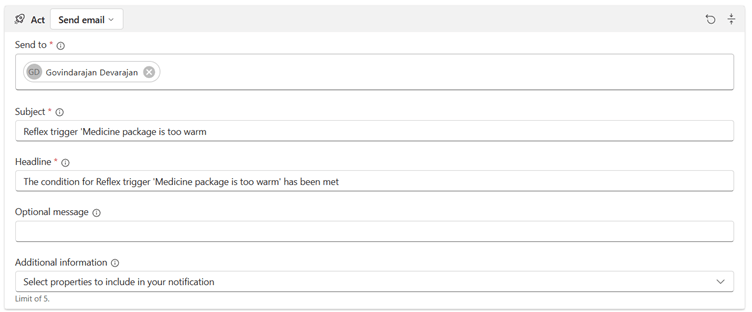
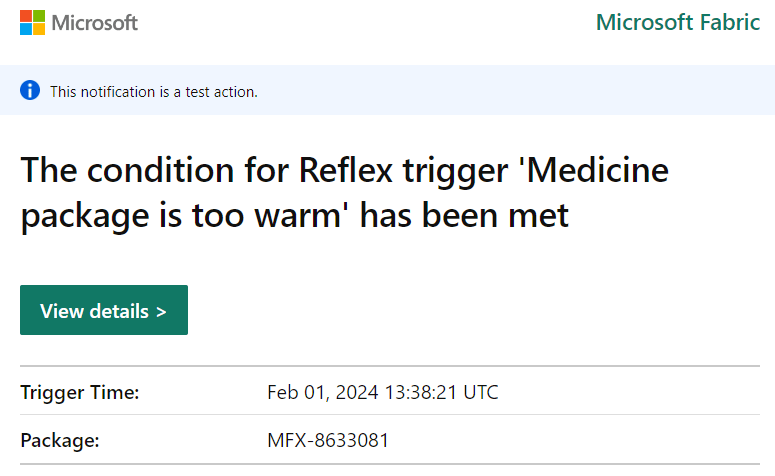
A sample mail triggered from Data activator using the ‘Send me a test alert’ button
Sources
Data Activator can be used in conjunction with two sources:
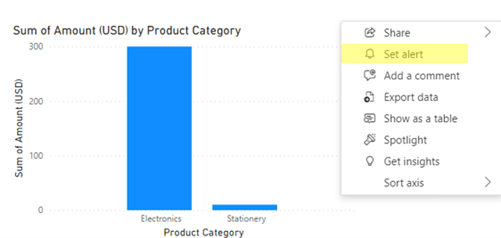
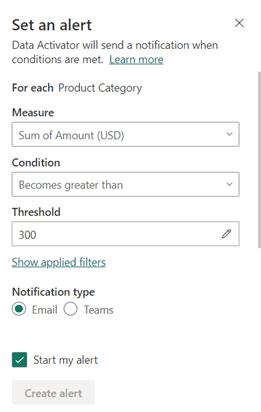
1. Power BI – In Power BI visuals, triggers can be set to match a condition and perform an action. But, this requires Power BI premium capacity or Fabric capacity of F64 or more.
In the below image, ‘Set Alert’ can be used on a visual in a report and it automatically opens a dialog box where the options for the trigger can be modified.
2. EventStream – Data Activator can be used with EventStream, a Fabric item that is used for real-time analysis. For example, IoT devices of a production factory can be connected to EventStream using Azure Event Hub.
In this blog, we have seen a working example of Data Activator that can be easily replicated in other tenants.
Data Activator is a phenomenal experience that comes with Microsoft Fabric, and it is well integrated with other tools thereby providing a streamlined workflow. Data Activator empowers organizations to take immediate actions in real-time based on the insights from data. This underscores a vital point: to prevent false alarms, it is crucial to have the quality of the data to be perfect end to end.


Comments (4)

Govindarajan
February 02, 2024 at 06:16 amAs mentioned in the blog, the conclusion is it can be used to immediately trigger actions based on data insights which is useful for organizations. Regarding sources, please check these links: Data Activator with Power BI Data Activator with EventStreams

educational tips
February 02, 2024 at 10:45 pmVery energetic post, I liked that a lot. Will there be a part 2?
Govindarajan D
February 02, 2024 at 06:00 amThanks for the comment. We are planning to show an actual use case with Data Activator.
Post A Comment
Stay ahead in a rapidly world. Subscribe to Prysm Insights,our monthly look at the critical issues facing global business.

© 2024 Data Crafters | All rights reserved
calculator online with tape
February 02, 2024 at 01:18 amThank you, I have just been searching for info about this topic for ages and yours is the greatest I have came upon so far. However, what in regards to the conclusion? Are you sure in regards to the source?